


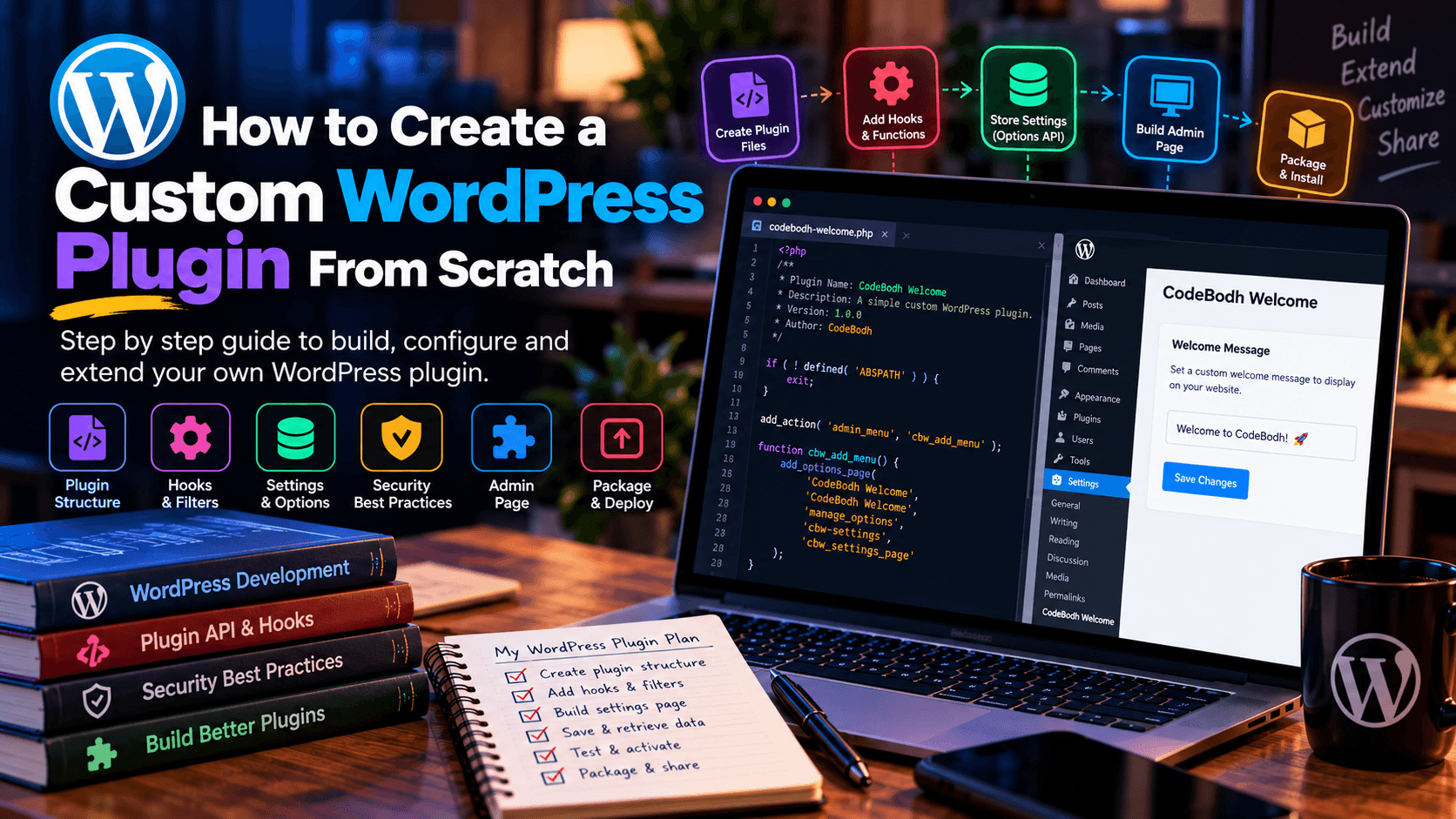
WordPress is more than a content management system. Its plugin architecture allows developers to extend the platform with completely new functionality without modifying WordPress core.
You can build a small plugin that adds a single feature, or a much larger application containing custom post types, REST APIs, admin dashboards, database tables, integrations, automation, and more.
In this guide, we'll build a simple custom WordPress plugin from scratch and cover the fundamentals you need to turn that first plugin into a properly structured, secure, and maintainable project.
What Is a WordPress Plugin?
A WordPress plugin is a collection of code that extends WordPress functionality. Plugins can contain PHP code as well as JavaScript, CSS, images, and other assets. A plugin can be as simple as a single PHP file or can grow into a complete application with many files and directories.
For example, a plugin could add:
- A contact form
- A custom post type
- A booking system
- An SEO feature
- A membership system
- A payment integration
- A custom admin dashboard
- An API integration
- A CRM
- An e-commerce feature
- An automation system
The important principle is that you should extend WordPress through plugins rather than modifying WordPress core files. WordPress can overwrite core files during updates, which is why custom functionality belongs in plugins.
What We're Going to Build
For this tutorial, we'll create a simple plugin called:
CodeBodh Welcome Message
The plugin will:
- Add a new settings page to WordPress Admin.
- Allow the administrator to enter a custom message.
- Display that message on the website.
- Use WordPress hooks.
- Store the setting using the WordPress Options API.
- Include activation and deactivation handling.
- Follow basic WordPress security practices.
The same architecture can later be expanded into a much larger plugin.
Step 1: Create the Plugin Directory
Open your WordPress installation and navigate to:
Create a new directory:
Inside that directory, create:
Your initial structure is:
WordPress detects plugins by looking for PHP files containing the appropriate plugin header. The official WordPress documentation recommends giving a plugin its own directory and using a main PHP file for the plugin.
Step 2: Add the Plugin Header
Open:
Add:
The most important field is:
WordPress uses this header information to recognize and display the plugin in the Plugins screen.
Additional header fields can include:
- Plugin URI
- Description
- Version
- Requires at least
- Requires PHP
- Author
- Author URI
- License
- License URI
- Text Domain
- Update URI
- Requires Plugins
WordPress documents these header fields in its current Plugin Handbook.
Step 3: Check That WordPress Detects the Plugin
Log in to:
You should see:
CodeBodh Welcome
At this point the plugin doesn't do anything yet.
That's normal.
We have created the plugin's foundation.
Step 4: Understanding WordPress Hooks
Hooks are one of the most important concepts in WordPress development.
They allow your plugin to interact with WordPress at predefined points without modifying WordPress core.
There are two major types:
Actions
Actions allow your code to perform an operation when a particular event occurs.
For example:
Filters
Filters allow your plugin to modify data before WordPress uses or displays it.
For example:
The distinction is simple:
Action → do something
Filter → modify something
WordPress uses actions and filters extensively throughout its core functionality.
Step 5: Add a Simple Action
Let's add a basic initialization function:
The function doesn't need to do anything yet.
The important thing is understanding the relationship:
This is the basic pattern you'll use repeatedly when developing WordPress plugins.
Step 6: Create a Plugin Setting
Now let's create something useful.
We'll allow the administrator to configure a welcome message.
For example:
WordPress provides the Options API for storing plugin settings and other configuration data. The Plugin Handbook specifically recommends using WordPress APIs rather than reinventing functionality that WordPress already provides.
We'll store our message using:
and retrieve it using:
Step 7: Add an Admin Menu
Add the following:
This creates a settings page under:
The capability:
helps ensure that only users with the appropriate administrative capability can access the settings page.
Step 8: Create the Settings Page
Now create the callback:
This provides the basic administrative interface.
But we still need to register the setting and create the field.
Step 9: Register the Setting
Add:
Now create the field:
We now have a complete settings field.
Step 10: Display the Message
Now let's display the message on the website.
One simple approach is to use wp_footer:
The message will now appear near the bottom of the website.
Why Escaping Is Important
Notice this:
and earlier:
These functions help ensure that data is safely output in its intended context.
WordPress's security documentation recommends validating and sanitizing incoming data and escaping data when it is output. It also emphasizes that developers should not trust data simply because it came from an administrator, a database, or another external source.
A useful rule is:
Validate early, sanitize when appropriate, and escape when outputting.
Step 11: Use a Nonce for Custom Forms
When your plugin creates its own form-processing logic, use WordPress nonces to help protect against unauthorized requests.
For example:
Then verify the nonce before processing the request.
For example:
WordPress's plugin security guidance specifically covers nonces, validation, sanitization, and escaping as core parts of secure plugin development.
Step 12: Validate User Input
Sanitization is not the same thing as validation.
Suppose your plugin expects:
You should validate that the value is actually an integer.
If the plugin expects:
validate that it is a valid URL.
If it expects:
validate it as an email address.
WordPress recommends validation where possible and sanitization when validation isn't sufficiently specific.
Step 13: Add Activation Logic
Plugins can perform setup tasks when they are activated.
WordPress provides:
For example:
Activation hooks can be used for tasks such as:
- Creating default settings
- Creating database tables
- Registering initial configuration
- Refreshing rewrite rules
WordPress documents activation and deactivation hooks as the appropriate mechanism for plugin lifecycle operations.
Step 14: Add Deactivation Logic
You can also run cleanup tasks when the plugin is deactivated.
But there is an important distinction:
Deactivation is not the same as uninstalling.
Deactivation generally means:
Stop the plugin from running.
Uninstallation means:
Remove the plugin and its stored data.
WordPress specifically recommends using the uninstall process for permanent cleanup rather than the deactivation hook.
Step 15: Create an Uninstall File
Create:
Your plugin now looks like:
Inside uninstall.php:
This allows WordPress to remove plugin-specific data when the administrator deletes the plugin.
The WordPress Plugin Handbook documents both uninstall.php and register_uninstall_hook() as supported approaches.
Step 16: Organize a Larger Plugin Properly
A one-file plugin is fine for a very small project.
But as functionality grows, you should separate the code.
A larger plugin could look like:
WordPress's Plugin Handbook recommends organizing larger plugins into logical directories such as includes, admin, public, languages, and related asset directories.
Step 17: Use a Unique Prefix
Your plugin should avoid generic function names such as:
Another plugin might already have a function with the same name.
Instead use a unique prefix:
For classes, constants, options, database tables, and hooks, use a consistent naming convention.
For example:
This reduces the possibility of naming conflicts with other plugins.
Step 18: Don't Put Business Logic Everywhere
A common beginner mistake is putting everything inside the main plugin file.
As the plugin grows, separate:
For example:
This makes the application easier to maintain and update.
Step 19: Use WordPress APIs
Don't reinvent functionality unnecessarily.
WordPress already provides APIs for many common tasks, including:
- Options
- HTTP requests
- Settings
- Metadata
- Filesystem operations
- Database access
- Users
- Roles and capabilities
- Cron
- REST APIs
- Transients
The WordPress Plugin Handbook specifically recommends using WordPress APIs where appropriate rather than recreating functionality yourself.
Step 20: Create an Admin Dashboard
If your plugin has multiple features, consider creating a dedicated admin menu.
For example:
You can create a top-level menu using:
or a submenu using:
For a small plugin, however, placing settings under the WordPress Settings menu may be more appropriate.
Don't create a large dashboard simply because you can.
The admin interface should match the complexity of the plugin.
Step 21: Add Custom Post Types When Appropriate
If your plugin needs to manage a specific type of content, a custom post type may be appropriate.
For example:
A product plugin might create:
with its own:
- Title
- Description
- Featured image
- Categories
- Metadata
- Custom fields
This allows WordPress's existing content-management infrastructure to handle much of the basic functionality.
Step 22: When Should You Create a Custom Database Table?
Not every plugin needs its own database table.
For simple configuration:
may be sufficient.
For content:
may be appropriate.
For large volumes of structured transactional data, a custom table may make more sense.
For example, a booking plugin might eventually need:
containing:
Use the WordPress database API and $wpdb rather than directly manipulating database connections.
Step 23: Think About Security From the Beginning
Security shouldn't be added after the plugin is finished.
Build it into the architecture.
At minimum, consider:
Authentication
Check whether the current user has the required capability.
Authorization
Don't assume that being logged in means someone can perform every action.
Nonces
Protect state-changing requests.
Validation
Make sure submitted values match what your application expects.
Sanitization
Clean data where appropriate.
Escaping
Escape output according to its context.
SQL Safety
Use prepared queries when constructing SQL with variable data.
File Uploads
Validate file types, permissions, filenames, and upload behavior.
WordPress's official security documentation emphasizes that untrusted data must be treated carefully and that input should be validated/sanitized and output escaped.
Step 24: Test the Plugin
Before releasing your plugin, test more than the happy path.
Test:
Also test:
- Empty fields
- Invalid input
- Unauthorized users
- Missing permissions
- Duplicate data
- Failed API requests
- Database errors
- Plugin conflicts
- Theme conflicts
- Different PHP versions
- Different WordPress versions
Step 25: Test With a Clean WordPress Installation
One of the best tests is a fresh WordPress installation with:
- Default theme
- No unnecessary plugins
- Your plugin installed
This can reveal assumptions your plugin makes about the environment.
Then test against a more realistic environment containing other common plugins.
Step 26: Check for JavaScript and CSS Conflicts
If your plugin adds frontend assets, don't load them everywhere.
Instead of loading:
on every WordPress page, load them only where they are required.
For example:
This reduces unnecessary frontend overhead.
Step 27: Internationalization
If you intend to distribute your plugin, consider internationalization from the beginning.
Instead of:
use WordPress translation functions such as:
This makes the plugin easier to translate later.
Your plugin's Text Domain should match the appropriate plugin text domain. WordPress documents text domains as part of the plugin header and internationalization system.
Step 28: Add a Proper License
If you're distributing your plugin, clearly define the license.
The WordPress ecosystem is closely associated with GPL licensing, and WordPress.org's plugin directory requires compatible licensing for hosted plugins.
If you're creating a commercial plugin outside WordPress.org, make sure the license terms accurately describe what customers can and cannot do.
Don't assume that every commercial WordPress plugin uses the same licensing model.
Step 29: Package the Plugin
When you're ready to distribute the plugin, your ZIP file should contain the plugin directory:
The user can then install it through:
Step 30: If You Want to Sell the Plugin
A custom WordPress plugin can become a commercial digital product.
For example, you could offer:
Free Version
- Basic functionality
- Limited features
- Community documentation
Pro Version
- Advanced features
- Premium integrations
- Priority support
- Automatic updates
Or sell a standalone plugin with a license such as:
The exact licensing model depends on the product and business strategy.
This is also where a platform such as CodeBodh can become useful: a developer can build a WordPress plugin and potentially distribute it as a digital product rather than using it only on their own website.
A Simple Complete Plugin
At this point, our basic plugin can be structured around:
The main file contains:
And:
This is intentionally simple, but it demonstrates the basic architecture behind many WordPress plugins:
Common Mistakes to Avoid
1. Editing WordPress Core
Don't modify WordPress core files to add your functionality. Core updates can overwrite those changes. Use plugins and hooks instead.
2. Using Generic Function Names
Avoid:
Prefer:
3. Trusting User Input
Never assume submitted data is safe.
Validate and sanitize input and escape output appropriately.
4. Forgetting Uninstall Cleanup
If your plugin creates options or custom tables, decide what should happen when the user permanently deletes the plugin.
Use the uninstall lifecycle for permanent cleanup rather than deactivation.
5. Loading Assets Everywhere
Don't load large JavaScript and CSS files on every page if your plugin only needs them in one location.
6. Building Too Much Too Soon
A small plugin doesn't need a massive architecture.
Start simple.
Refactor when the complexity actually requires it.
WordPress itself recommends choosing plugin architecture appropriate to the size and complexity of the plugin.
Final Thoughts
Creating a WordPress plugin isn't simply about writing a PHP file.
A good plugin should:
- Follow WordPress conventions
- Use hooks appropriately
- Keep functionality separate from WordPress core
- Validate input
- Sanitize where appropriate
- Escape output
- Protect administrative actions
- Handle activation and deactivation correctly
- Clean up after uninstall
- Use a maintainable structure
- Consider compatibility
- Be tested before distribution
Once you understand these fundamentals, you can move far beyond a simple settings plugin.
The same concepts can be used to build:
Custom post type plugins
Membership systems
Booking platforms
CRM plugins
Payment integrations
SEO tools
AI integrations
Automation plugins
Analytics dashboards
WooCommerce extensions
and even complete WordPress-based SaaS products.
The key is to start small, understand the WordPress APIs and hooks, and gradually build your plugin architecture around the actual problem you're trying to solve.
Build the feature as a plugin. Build the plugin as a product.



Comments (0)